
Platform
Certificate authorities
Create and manage root and issuing certificate authorities.
An organization has one root CA and one or more issuing CAs. Distribute the root as the trust anchor; use issuing CAs to sign certificates.
The Certificate Authorities page has separate cards for the root and issuing CAs.
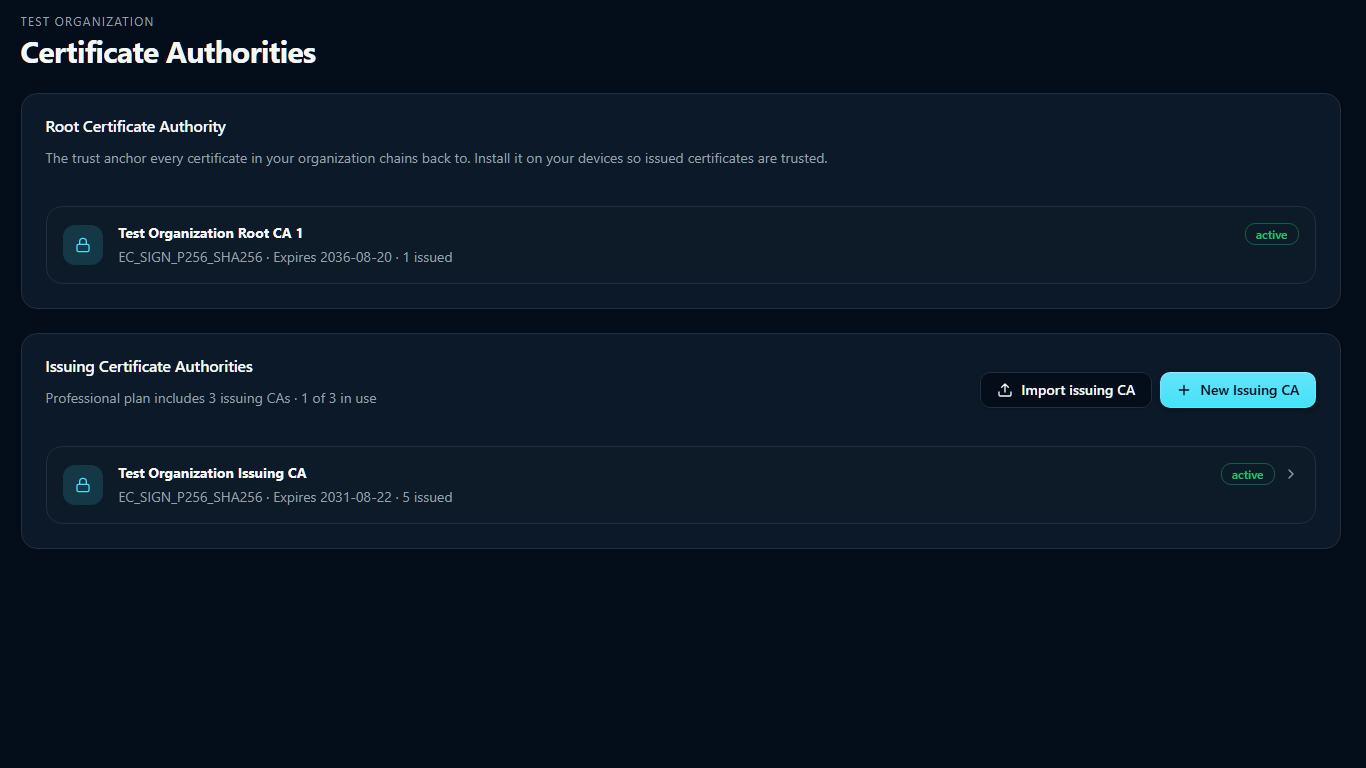
Configure the root
Administrators can select Configure Root CA in the top card.
| Field | Notes |
|---|---|
| CA name | For your records; not part of the certificate |
| Subject | Common name (CN), organization (O), organizational unit (OU), country (C), state or province (ST), locality (L). CN, O, C and ST are required. The common name is what appears in trust stores |
| Key algorithm | ECDSA P-256, ECDSA P-384, RSA 3072, or RSA 4096 |
| Key protection | Software or HSM. HSM requires supported HSM-capable KMS infrastructure |
| Validity (years) | Defaults to 10. Up to 30 |
| Path length (max subordinate CA depth) | 0–4, default 1. A value of 1 allows issuing CAs; 0 allows no subordinate CAs |
| Extended Key Usages (EKU) | The named usages, plus a field for custom dotted OIDs. Client auth is ticked by default |
Select Create CA. A root can be created only once per organization. Changing its subject requires a new root and trust deployment. Issuing CAs can only use EKUs selected on the root.
Create an issuing CA
In Issuing Certificate Authorities, select Create issuing CA or New Issuing CA.
Select a parent root and EKUs from the root's profile. Validity defaults to five years and cannot exceed the root's expiry. Issuing CAs have no path-length or custom-OID fields.
A disabled button shows the reason on hover.
The CA's issuance profile defines which extended key usages its endpoints may permit.
Create separate issuing CAs when trust domains or issuance policies need to be isolated.
anyExtendedKeyUsage (2.5.29.37.0) is not supported. Select specific usages instead.
Key protection
Production keys are generated by the configured Google Cloud KMS or Azure Key Vault provider and cannot be exported. Software- and HSM-backed protection are selected independently for each CA. Each authority displays its export posture:
| Posture | What it means |
|---|---|
| Non-exportable | Generated inside the configured KMS provider; the key has never existed outside it |
| Imported | You generated the key and imported it wrapped. SimpleSCEP's copy is non-exportable, but it is not the only copy — see Importing your own CA |
Status
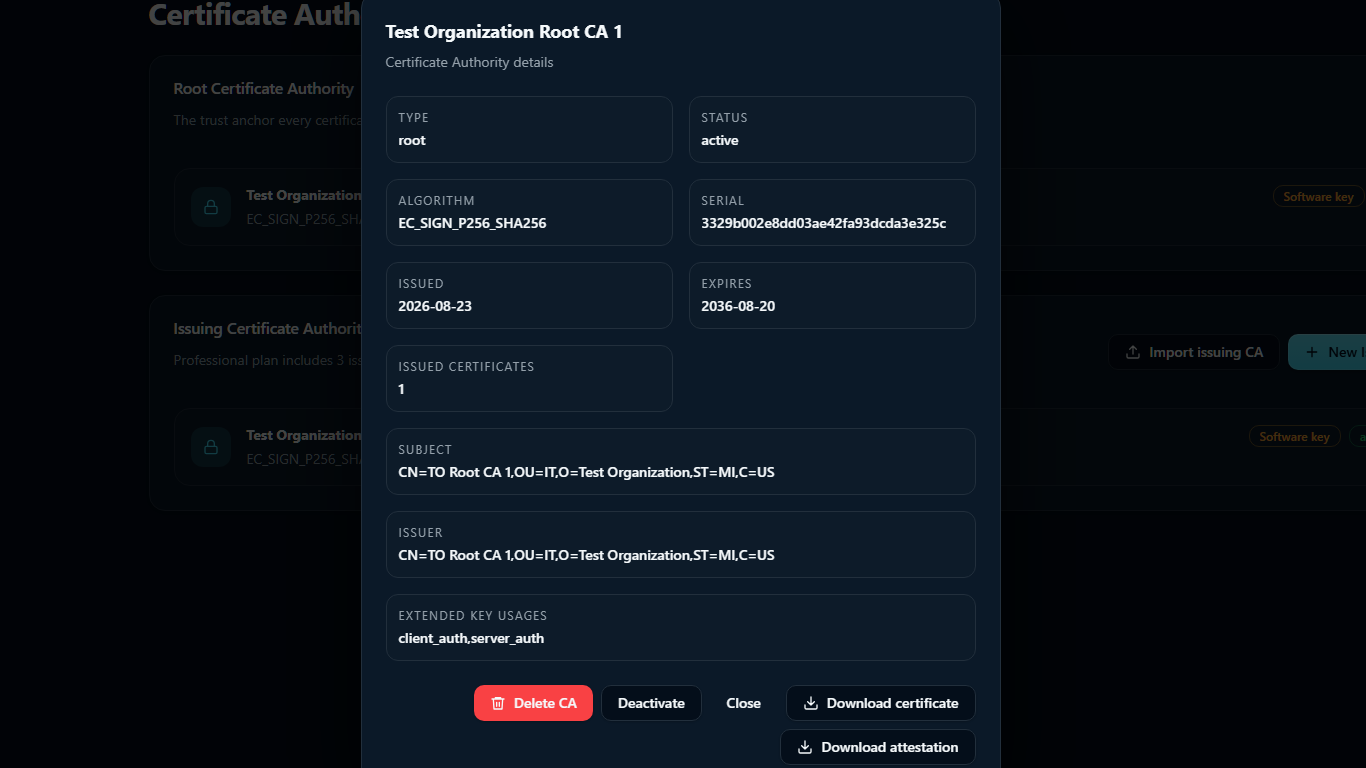
Each row shows the CA's algorithm, expiry, issued count, and status. Select a row to view details and available actions.
| Status | Effect |
|---|---|
| Active | Can sign. Endpoints may bind to it |
| Inactive | Cannot sign. Reversible |
| Retired | Permanently out of service. Not reversible |
| Deleted | Hidden, and its key version scheduled for destruction |
Certificates issued by an inactive, retired, or deleted CA are not revoked. They stay valid until they expire or you revoke them, and the CA's CRL and OCSP responder keep answering for as long as the CA exists.
Rotate
Rotation creates a new key and certificate with the same subject, algorithm, profile, and full validity period, then retires the old CA. It does not consume another issuing CA slot.
Endpoints remain bound to the old CA. Create replacement endpoints for the new CA and migrate clients. Existing certificates remain valid, and the old CA continues publishing its CRL.
What blocks a change
- An enabled endpoint of any protocol bound to a CA blocks retiring, deactivating, rotating, or deleting it. Disable the endpoint first — the error names which protocol is holding it.
- A CA with live subordinates cannot be deleted until they are.
Delete
Deleting a CA hides it and asks the configured provider to schedule its key version for destruction. Provider retention and recovery rules apply. After destruction, the CA can no longer sign or publish a CRL.
Deleting is a step-up action: you will be asked to prove your second factor if you have not done so in the last five minutes.
Download the chain
Download certificate returns the CA certificate and chain as PEM. Download attestation returns the key attestation bundle as a ZIP file.
SCEP endpoint pages also provide a CA bundle beside the enrollment URL. For ACME and EST, download the root here.