
Platform
Issuing certificates
Issue certificates from a CSR or generated keypair.
Use the Certificates page for manual issuance, such as tests, one-off devices, or services without an enrollment client.
Issuing requires the administrator or certificate manager role.
The Certificates page provides Server, Client, and Submit CSR actions. Unavailable actions are disabled with an explanation.
From a CSR
Submit CSR opens Sign a Certificate Signing Request. Paste a PKCS#10 CSR, choose the issuing CA and the validity, and optionally narrow the extended key usages to a subset of the CA's profile.
The CSR signature must be valid. Its subject and SANs are copied unchanged. Requests containing private key material are rejected.
Generate a keypair
Server and Client open the same form under different titles — Issue a server certificate, Issue a client certificate. Fill in the subject fields and add subject alternative names; DNS names, IP addresses, and email addresses are separate comma-separated fields and are each validated.
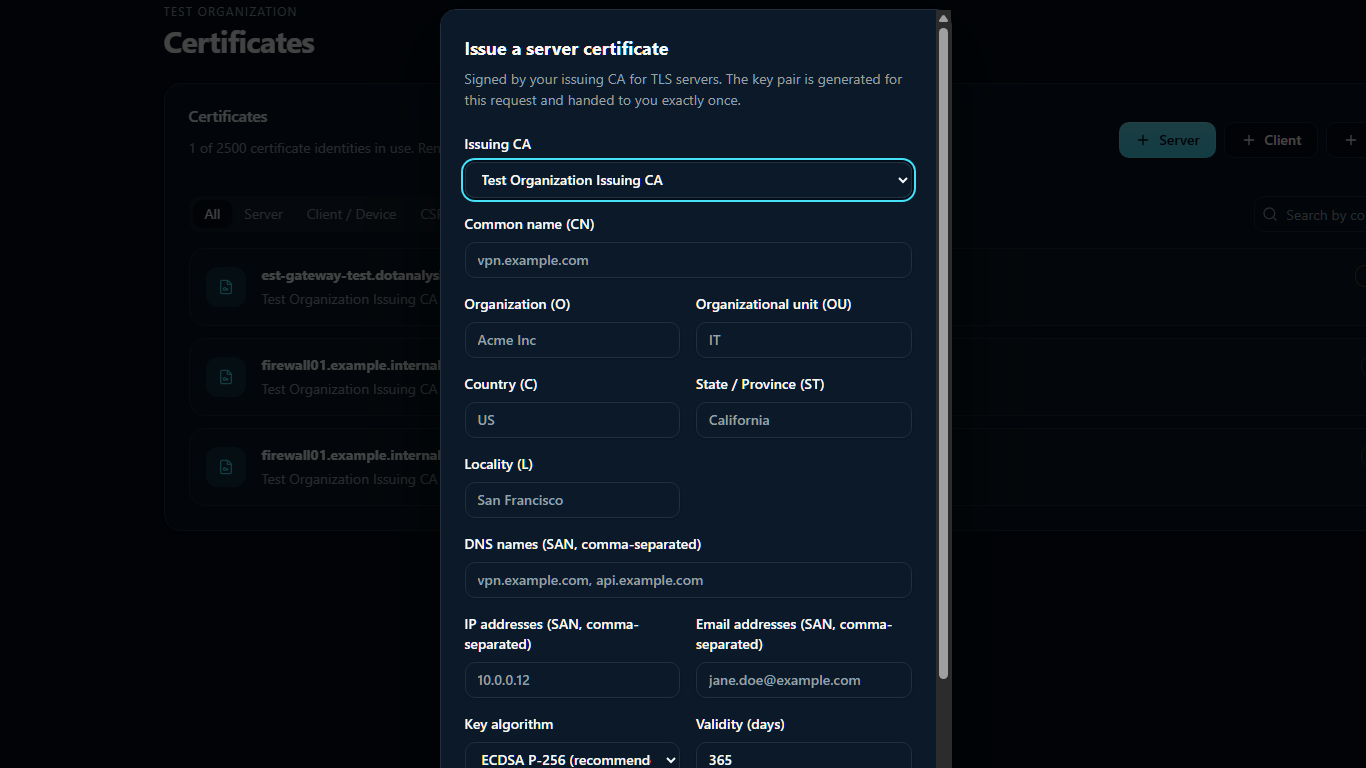
SimpleSCEP returns the generated private key once and does not store it. If it is lost, issue another certificate.
A server certificate always includes server authentication and a client certificate always includes client authentication; the issuing CA's profile must permit whichever applies.
| Key algorithm | Notes |
|---|---|
| RSA 2048 | Widest compatibility |
| RSA 3072, RSA 4096 | Where policy requires a larger modulus |
| EC P-256, EC P-384 | Smaller and faster; check the relying party supports it |
Validity is capped at 3650 days and cannot outlive the issuing CA.
Certificate list
The page lists certificates issued through the console, SCEP, ACME, and EST. Filter by type or search by common name.
Select a row to view details, download the certificate, or revoke it. See Revocation, CRL and OCSP.
Registration authority certificates generated by SimpleSCEP are marked as infrastructure certificates.
Expiry alerts
SimpleSCEP checks daily for expiring certificates and emails every administrator. Set the notice period under Notifications → Certificate expiry alerts on the Organization page.
The console's overview page also counts certificates expiring within 30 days.
Expiry alerts often indicate a manually issued certificate or a failed automatic renewal.