
Protocols
SCEP challenges and secrets
One-time challenges, shared secrets, and pinning a single enrollment.
Every SCEP device presents a challenge password. Multiple authentication methods can be enabled on an endpoint.
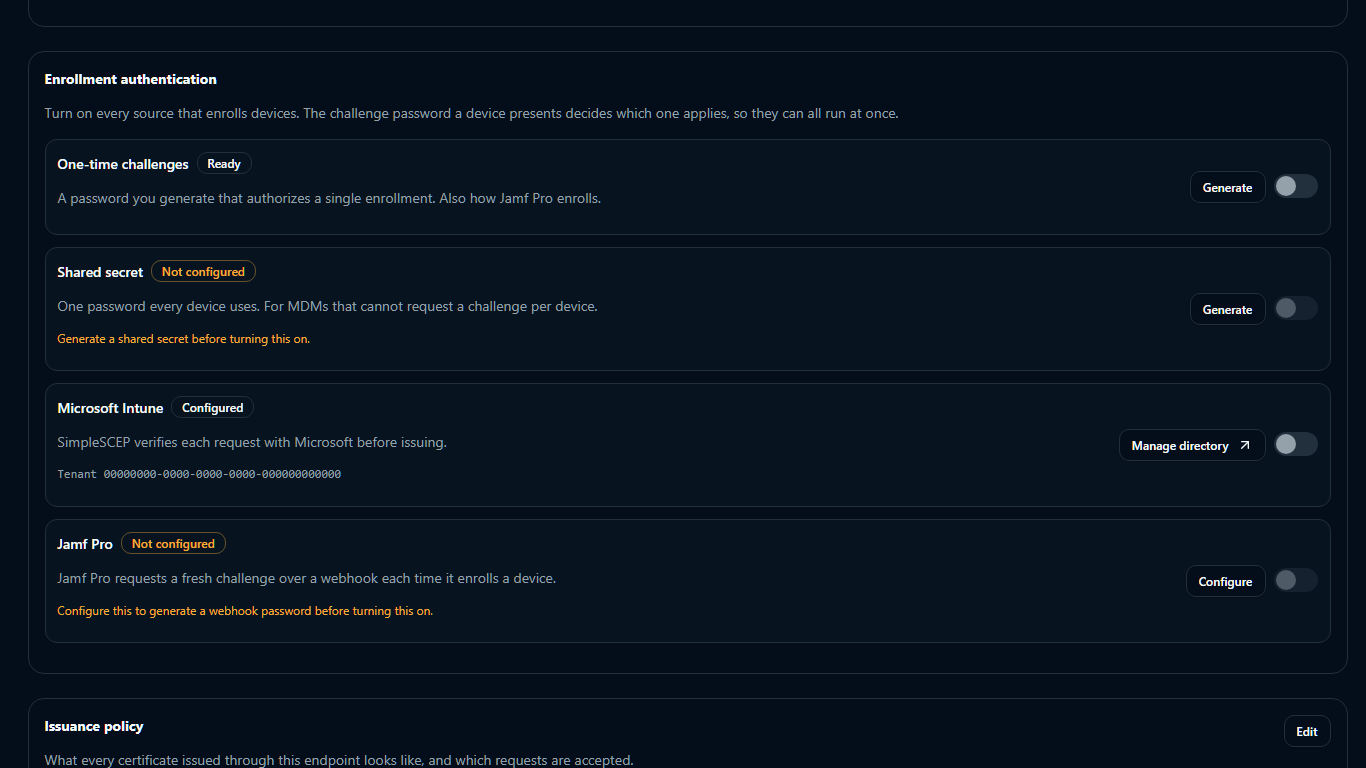
Configure and enable methods under Enrollment authentication. Configuration does not enable a method automatically.
| Method | Button | How a device gets its password |
|---|---|---|
| One-time challenge | Generate | An administrator generates one in the console, or automation posts for one |
| Shared secret | Generate, then Rotate | One password every device uses |
| Microsoft Intune | Connect directory | Intune issues it and Microsoft validates it |
| Jamf Pro | Configure, then Update | Jamf fetches a fresh challenge per device over a webhook |
The Intune directory connection is shared across the organization and configured on the protocols page.
One-time challenges
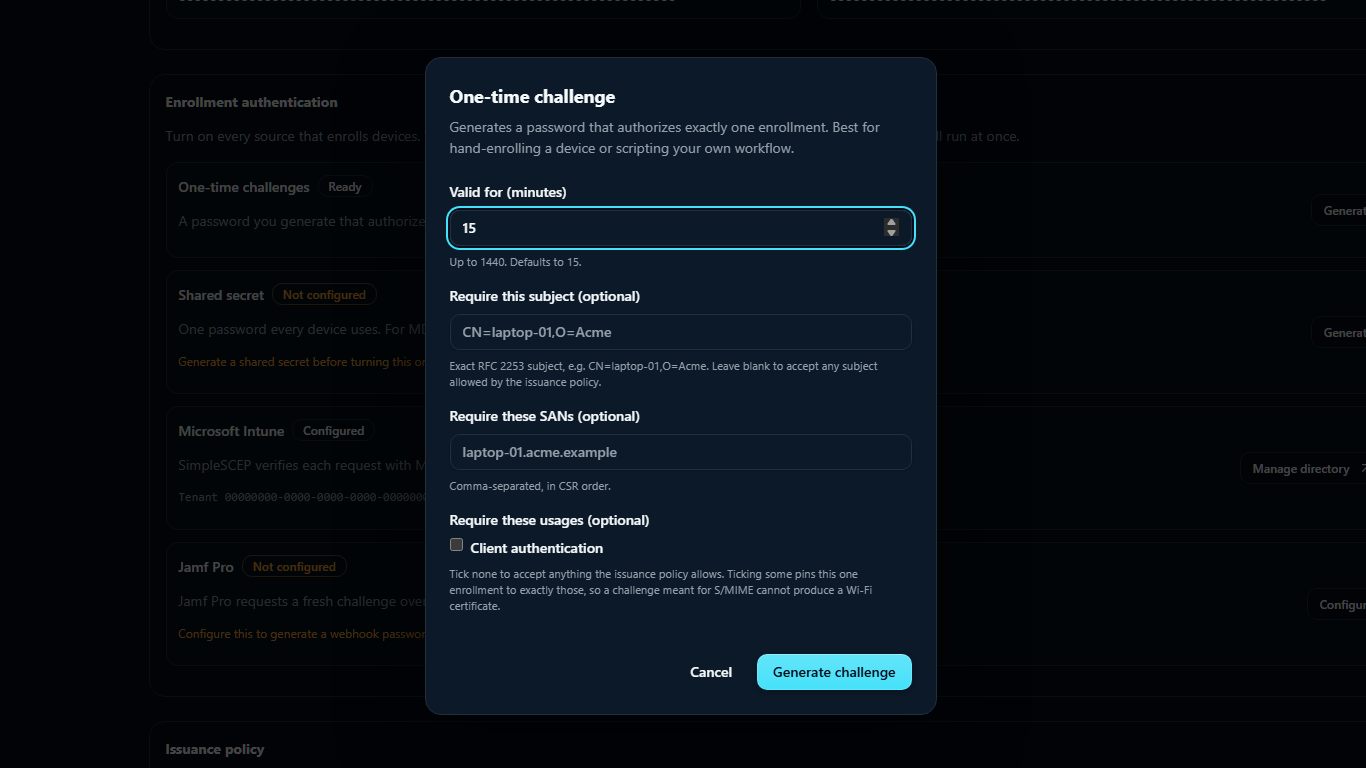
A one-time challenge can be used once. Select Generate, set its lifetime and optional subject, SAN, or usage restrictions, then select Generate challenge. The password is shown once.
The same thing from automation:
curl -sS -X POST \
  https://pki.example.com/api/scep/endpoints/<endpoint-id>/challenges \
  -H 'Content-Type: application/json' \
  -d '{
        "expectedSubject": "CN=laptop-4193.corp.example.com",
        "expectedSANs": "laptop-4193.corp.example.com",
        "expectedEKUs": ["client_auth"],
        "externalId": "asset-4193",
        "ttlSeconds": 900
      }'

# → {"challenge":"…","expiresIn":"15m0s"}
All fields are optional. The default lifetime is 15 minutes.
| Field | Effect |
|---|---|
expectedSubject |
The enrollment must present exactly this subject |
expectedSANs |
The enrollment must present exactly these names, in this order |
expectedEKUs |
The usages this one enrollment may ask for. May only narrow what the endpoint permits, and is compared as a set — order does not matter |
externalId |
Your own reference, carried through to the enrollment record |
ttlSeconds |
Lifetime. Defaults to 900, capped at 24 hours. A value over 24 hours or below zero falls back to 900 |
Pins restrict a challenge to one expected enrollment.
Challenge passwords are shown once and cannot be listed later. Used challenges appear under Recent enrollments. Deleting the endpoint deletes unused challenges.
Shared secret
One shared secret can authenticate multiple devices. Select Generate or Rotate, or use the API:
curl -sS -X POST \
  https://pki.example.com/api/scep/endpoints/<endpoint-id>/auth/static
The secret is shown once. Rotate it if lost. Rotation immediately invalidates the previous secret.
Anyone with the shared secret can enroll within the endpoint's policy. Use a restrictive policy and short validity period.
Using the API
Both routes accept form data or application/json; JSON requests receive JSON responses.
Administration requires an administrator session. There is no service-account or API-key authentication yet — use a dedicated administrator session for automation until there is.