
Introduction
Quickstart - Microsoft Intune SCEP
Deploy the trusted-root, device, and user SCEP profiles for Windows through Microsoft Intune.
This walks through the Intune configuration profiles a Windows device needs to enroll: the trusted-root profile, a device certificate, and a user certificate. It assumes the Entra directory is already connected — see Microsoft Intune — and an endpoint has Microsoft Intune enabled under Enrollment authentication.
Deploy the root before the SCEP profile reaches a device, and assign both to the same device group.
1. Trusted certificate profile
Download the CA bundle from the endpoint page, then create a Trusted certificate profile (Windows 10 and later) in Intune:
- Certificate file — the downloaded bundle.
- Destination store — Computer certificate store — Root.
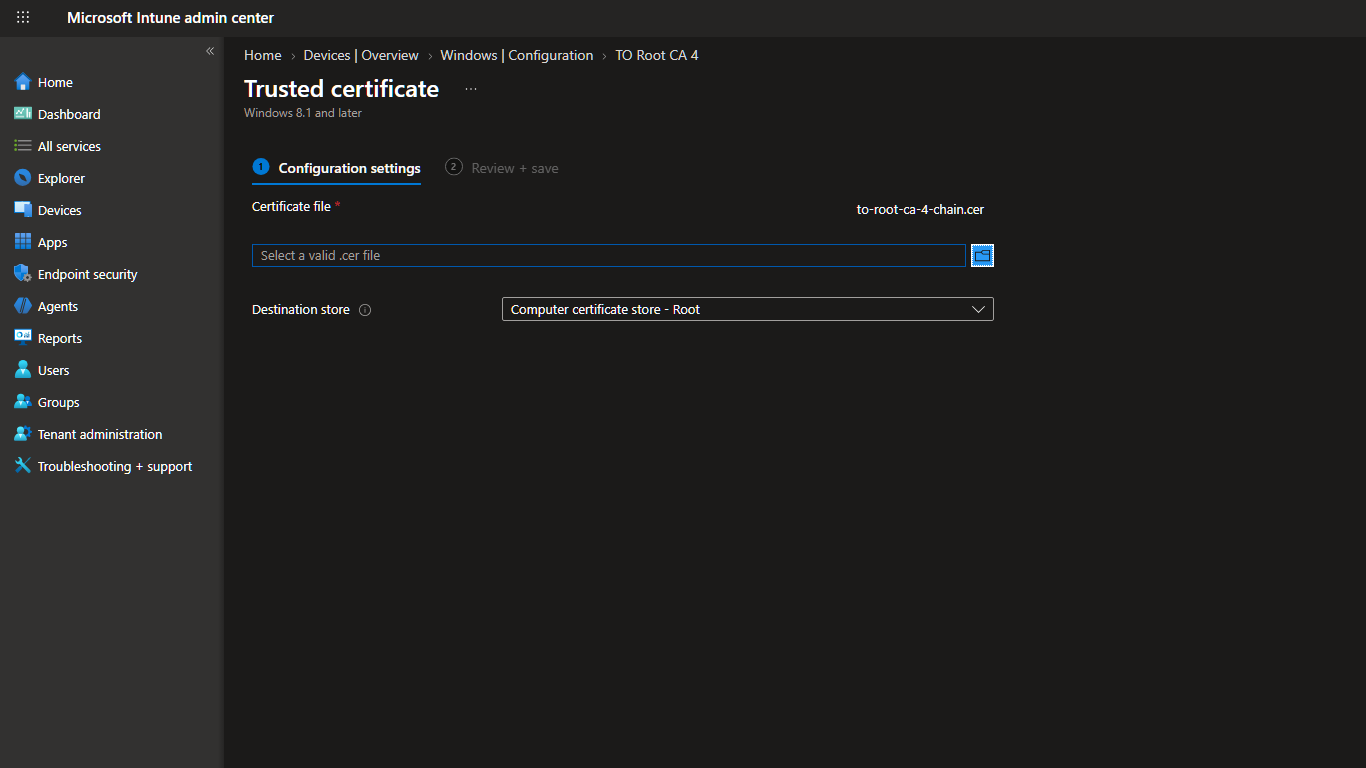
Without this step the device enrolls but never trusts the issuing hierarchy, so anything presenting the certificate afterward — Wi-Fi, VPN, 802.1X — fails even though enrollment reported success.
2. Device certificate profile
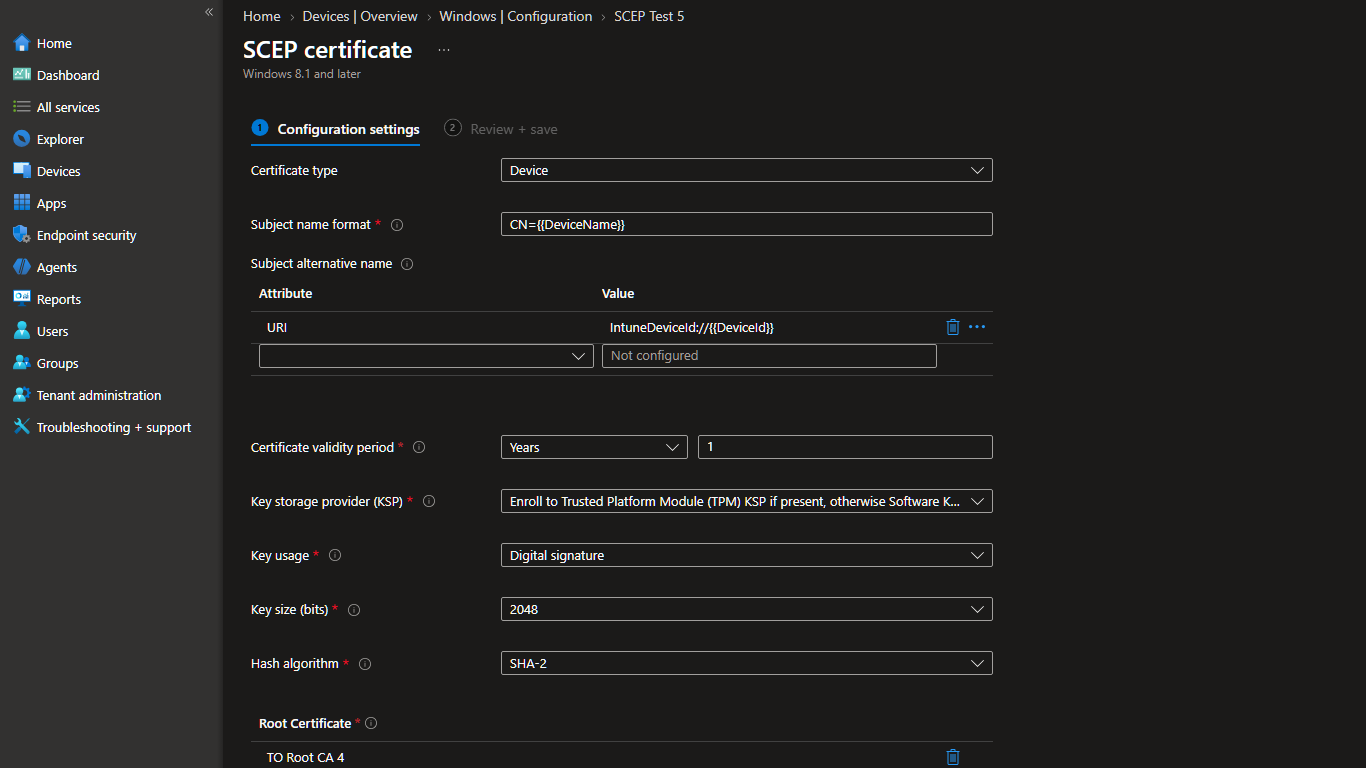
Create a SCEP certificate profile with Certificate type set to Device.
| Field | Example shown here | Notes |
|---|---|---|
| Subject name format | CN={{DeviceName}} |
Any Intune variable works — SimpleSCEP does not special-case a list of them |
| Subject alternative name | URI: IntuneDeviceId://{{DeviceId}} |
Refused unless the endpoint's SAN pattern permits it — see below |
| Certificate validity period | 1 year | Ignored. The endpoint's own validity always wins |
| Key storage provider (KSP) | TPM if present, otherwise software | |
| Key usage | Digital signature | |
| Key size (bits) | 2048 | RSA keys under 2048 bits, or EC curves under 256 bits, are refused regardless of what the profile asks for |
| Hash algorithm | SHA-2 |
| Field | Example shown here | Notes |
|---|---|---|
| Root Certificate | The CA deployed in step 1 | |
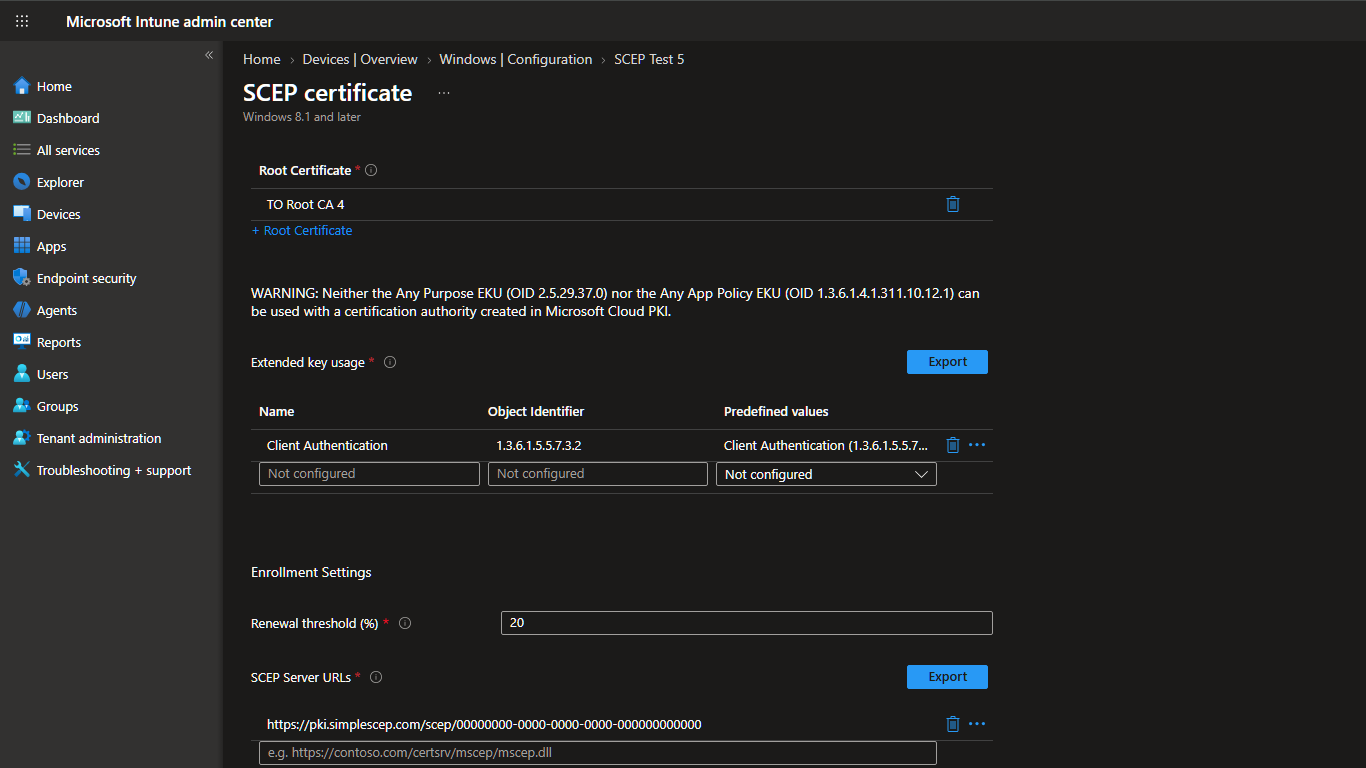
| Extended key usage | Client Authentication (1.3.6.1.5.5.7.3.2) |
Must be one of the endpoint's permitted usages |
| Renewal threshold (%) | 20 | |
| SCEP Server URLs | https://pki.example.com/scep/<endpoint-id> |
Do not append pkiclient.exe — Windows does that itself |
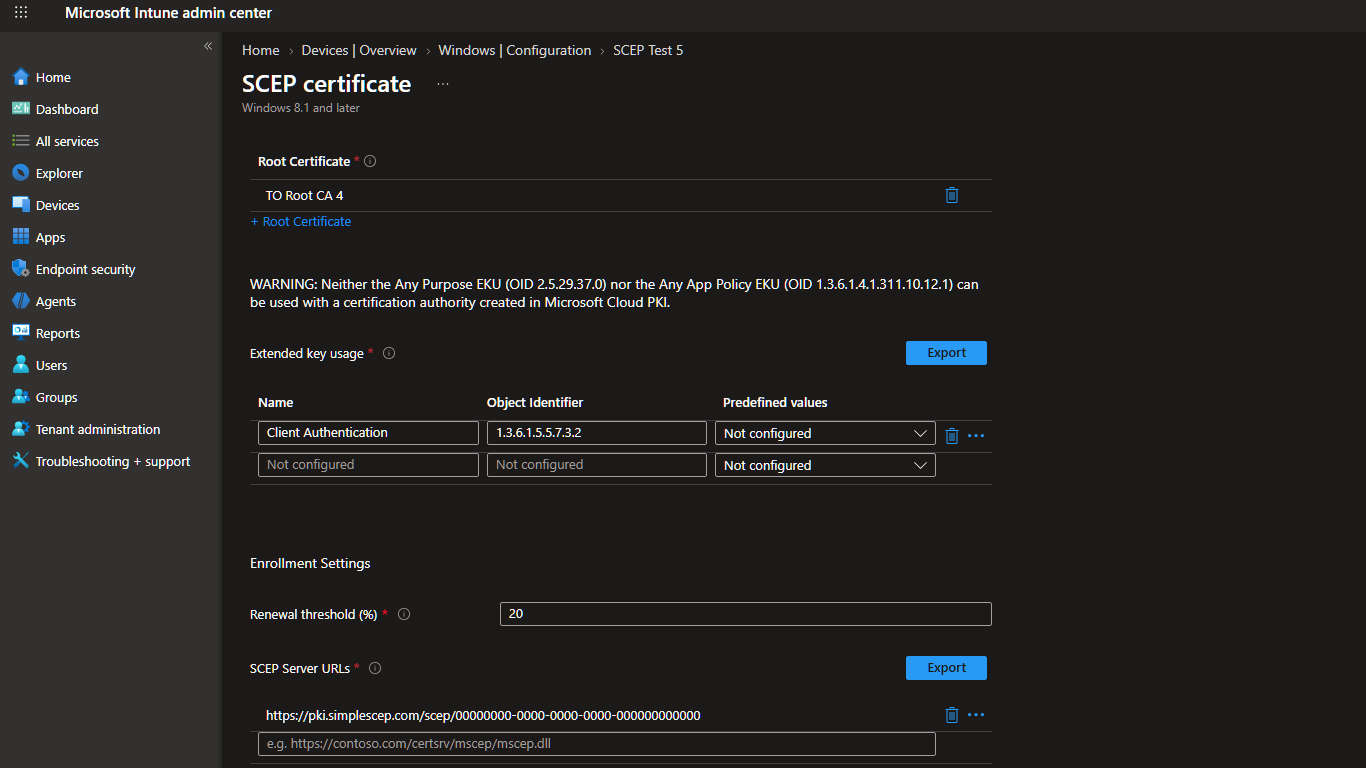
Intune's warning about the Any Purpose and Any App Policy EKUs applies to authorities created in Microsoft's own Cloud PKI product, not to a SimpleSCEP root — and SimpleSCEP refuses anyExtendedKeyUsage outright regardless of which CA it comes from, so it does not apply here either way.
3. User certificate profile
Same profile type, Certificate type set to User:
| Field | Example shown here | Notes |
|---|---|---|
| Subject name format | CN={{UserPrincipalName}},O=Test Organization |
Free-form. The rest of the subject is exactly whatever the profile sends |
| Subject alternative name | Email address: {{EmailAddress}} |
Refused unless the endpoint's SAN pattern permits it |
| Certificate validity period | 1 year | Ignored, same as the device profile |
| Key storage provider (KSP), key usage, key size, hash algorithm | Same defaults as the device profile |
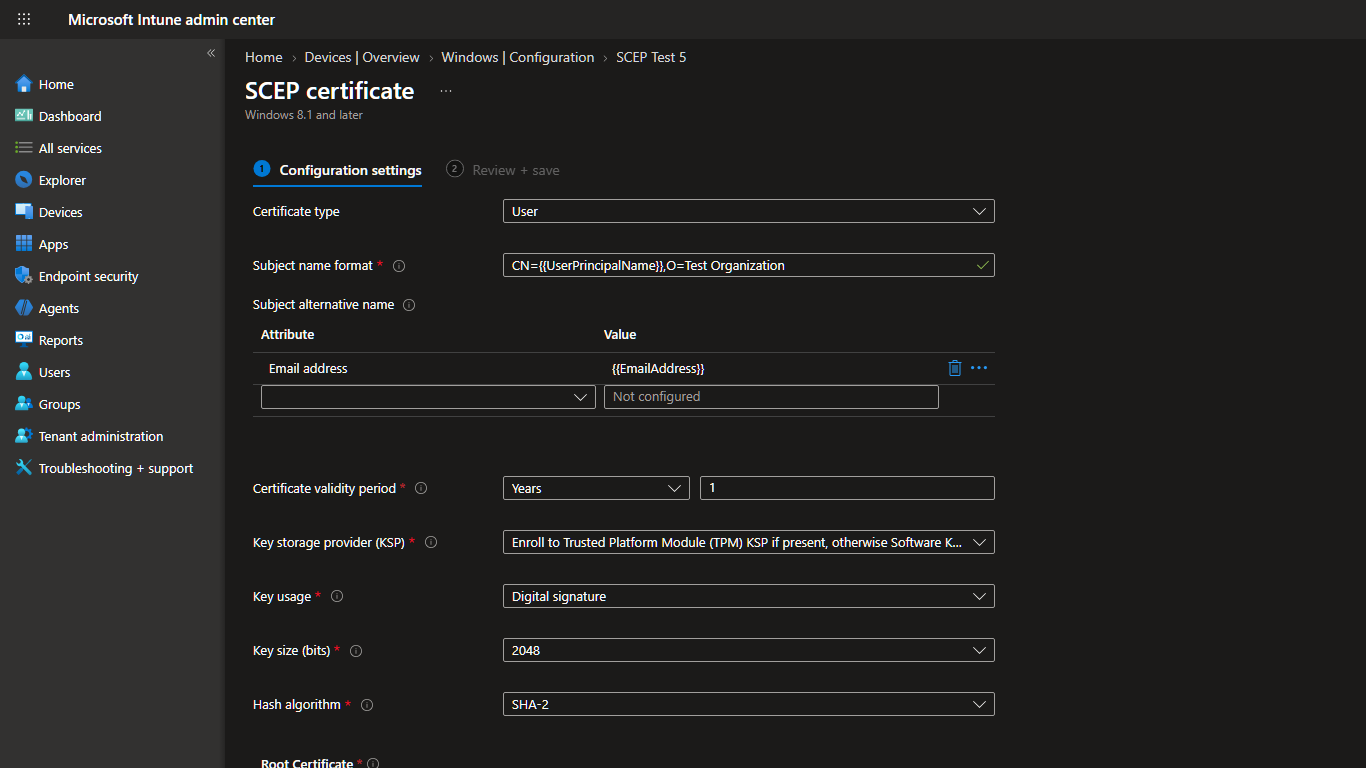
Root certificate, extended key usage, renewal threshold, and SCEP Server URLs work the same as the device profile.
How far the customization goes
SimpleSCEP does not maintain a list of Intune variables it understands, and it does not rewrite a request to fit one. The subject and every subject alternative name are checked against the endpoint's own subject and SAN patterns — plain regular expressions an administrator writes — and, if they match, issued exactly as the profile sent them. {{DeviceName}}, {{UserPrincipalName}}, {{AAD_Device_ID}}, a custom OU=, an unusual SAN shape — none of it needs SimpleSCEP's support to work, only a pattern on the endpoint that allows it through.
The one asymmetry worth knowing before deploying either profile above: a blank subject pattern accepts anything, but a blank SAN pattern accepts nothing — an endpoint with no SAN pattern set refuses both the device profile's URI SAN and the user profile's email SAN. Set a pattern on the endpoint's Issuance policy before assigning either profile, for example:
Device endpoint SAN pattern:  ^IntuneDeviceId://[0-9a-fA-F-]{36}$
User endpoint SAN pattern:    ^[^@\s]+@yourcompany\.com$
Anchor both with ^…$; an unanchored pattern matches a substring of the name, not the whole thing. If device and user certificates share one endpoint, the pattern needs to accept both shapes — putting each on its own endpoint keeps the pattern, validity, and permitted usages specific to what that population actually needs. See Issuance profiles and key usages for how the subject and SAN patterns are evaluated.
SCEPman's Windows 10 Intune guide walks through the same three profiles and is a reasonable reference for the Intune side of this. Where it differs is what happens after Intune sends the request: SCEPman's own configuration settings decide what a profile may ask for, where SimpleSCEP's issuance policy — subject pattern, SAN pattern, and permitted extended key usages, all set per endpoint — decides it instead, so changing what a profile can request is an endpoint setting, not a redeployment.
Verify enrollment
Sync the device, then confirm the certificate on the Certificates page — subject, SANs, and usages should match what the profile asked for. If enrollment fails, check the endpoint's Recent enrollments log for the refusal reason before assuming the profile is wrong; see Troubleshooting.